Verify School IT Setup Before Buying Minecraft Education
We hear the same story every few weeks from different districts. A passionate teacher champions Minecraft Education, the budget gets approved, the licenses are purchased on a Monday, and by Thursday…
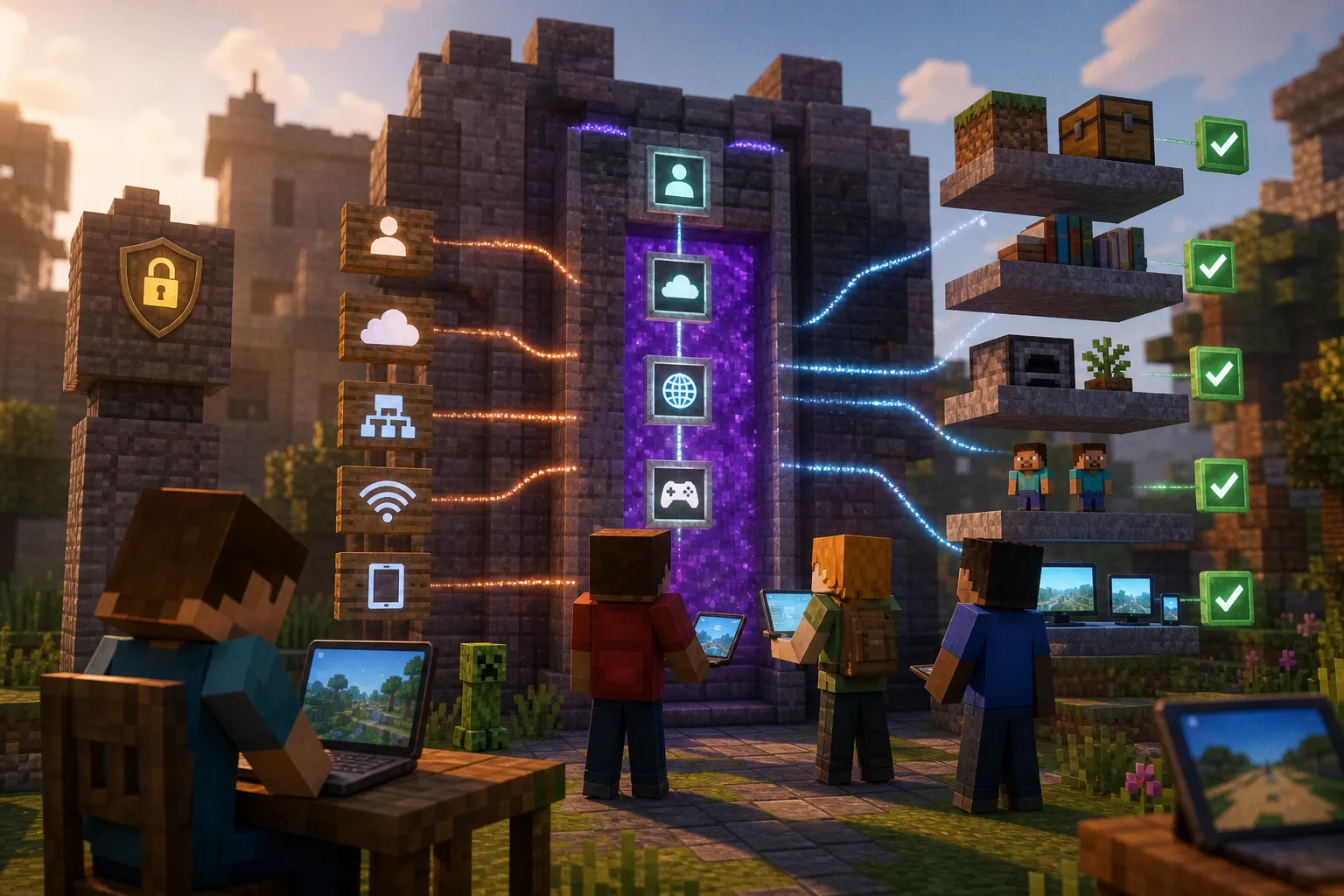
We hear the same story every few weeks from different districts. A passionate teacher champions Minecraft Education, the budget gets approved, the licenses are purchased on a Monday, and by Thursday a class period is in chaos because half the students can't sign in. The diagnosis usually lands on the IT department, but the real cause was almost always upstream: nobody verified the technical prerequisites before the procurement order went through. Firewall rules that block multiplayer ports. An aging fleet of Chromebooks that just barely meets the minimum bar. Microsoft 365 Education accounts that were never provisioned at scale. None of these failures have anything to do with how good the lesson plan is. They happen because the IT setup wasn't confirmed first.
This guide is for the educators, instructional coaches, and IT leads who want to skip that pain entirely. We walk through the five pillars every school should tick off before a single license is purchased or downloaded: who signs in, what the network allows, what the devices can handle, how the deployment will scale, and where the most common gotchas hide. By the end, you'll have a checklist you can hand to your principal, your tech director, or your district office with confidence.
Authentication Architecture: Managing Microsoft 365 Education Accounts
Before anyone builds a single castle or harvests a single pixelated carrot, every student and teacher who touches Minecraft Education needs to be able to sign in. That sign-in is not a casual username and password. It runs through Microsoft's education identity layer, and that's where most surprises begin.
What the system actually requires
Minecraft Education authenticates through Microsoft 365 Education. That means every learner needs an institutional account tied to your school's tenant, with the correct license attached. Personal Outlook accounts, family Xbox logins, and personal Microsoft accounts will not work for classroom deployment. This is non-negotiable at scale: if a student signs up on a home account, they will not appear in your school's roster, and your teacher will not be able to see them in a multiplayer world.
If your school doesn't currently use Microsoft 365 Education, that's a foundational decision to make before any Minecraft purchase. Some districts run Google Workspace as their primary identity provider and would have to add M365 Education as a parallel system for this one game—a cost that rarely makes sense. We always recommend opening the project with this question: is our identity layer aligned with what Minecraft Education requires?
What to verify with your IT team
We've watched IT teams pause for a full audit when we hand them this list, and we consider that a healthy sign:
- A licensed Microsoft 365 Education tenant is provisioned (A1 is the typical entry point for students and educators).
- Every student account exists, has a verified sign-in method, and carries the Minecraft Education license assignment.
- Teachers have admin-level access to assign licenses, create classes, and view student rosters.
- Single sign-on is configured so learners don't juggle multiple passwords per period.
A license purchased without matching identity accounts is just an expensive download waiting to fail.
A common misstep we keep seeing
Schools sometimes pilot Minecraft Education with a small group using a teacher's personal account, then try to expand. The expansion phase hits a wall because the accounts were set up ad hoc and never rolled out through the official identity system. Pilot or production, run every Minecraft sign-in through the same Microsoft 365 Education pipeline from day one. It is dramatically easier to maintain one sign-in path than to retro-fit a second one partway through a rollout.
Network Infrastructure and Firewall Configuration for Multiplayer Connectivity
Even a perfectly licensed student can't build with their classmates if the network will not let them find each other. Minecraft Education multiplayer runs on specific network paths that many school firewalls block by default. We encourage working through this section with both your IT support team and your network documentation side by side.
The ports and domains that matter most
Multiplayer connectivity depends on two UDP ports: 19132 and 19133. If your school's firewall, content filter, or web proxy blocks UDP traffic on either of these ports, students will be able to launch the game and see their own worlds—but every attempt to join a class session will time out. This is the single most common reason a "working" install suddenly feels broken the moment a teacher tries to run a co-op lesson.
Equally important is allowing specific domains through your web filter. The three that consistently appear in deployment documentation are:
| Domain | What it does |
|---|---|
| education.minecraft.net | Hosts game downloads, lesson content, and update servers |
| login.microsoftonline.com | Handles Microsoft authentication for sign-in |
| graph.microsoft.com | Powers roster syncing between M365 and the game |
If your district uses a managed content filter (Securly, Lightspeed, GoGuardian, or similar), confirm with the vendor that the domains above are explicitly allow-listed. Generic "block social and games" rules can quietly affect Minecraft Education even when no adult intended to filter it.
Testing the connection before you buy
You don't need a paid license to confirm your network will cooperate. Your IT administrator can:
1. From a teacher device, run a test build session using a free Minecraft Education trial account.
2. Try to join a multiplayer world hosted on a second device on the same network.
3. Confirm whether the UDP ports respond using a simple network probe or by checking the firewall logs.
If those three steps fail, no number of licenses will rescue the lesson plan. Writing down the result of this mini-test is a small habit that protects the next person inheriting the project from repeating detective work.
Bandwidth, latency, and rural networks
How much bandwidth multiplayer requires depends on class size and the complexity of the world. In typical twenty-five-student classes, we see Minecraft Education run comfortably on a school network that already supports a Zoom call for the whole staff. Microsoft has not formally documented exact latency needs for rural school networks with limited uplink capacity, so the honest practice is to test with a worst-case class before committing district-wide. The more simultaneous multiplayer sessions you stack, the more upstream bandwidth you need.
A classroom world only exists when two devices can find each other across your firewall.
Device Compatibility and Hardware Benchmarks for Classroom Performance
The third pillar is the device each student will actually touch. Minecraft Education runs as a native application—it's not a browser game, so you can't simply hand a kid a Chromebook tab and assume it works. Compatibility varies meaningfully across the four supported platforms, and hardware that just barely meets the minimum spec often falls short in a thirty-person class.
Where it runs
Minecraft Education officially supports four device families:
- Windows 10 and Windows 11 laptops and tablets.
- macOS laptops and desktops.
- iPadOS tablets—iPad 6th generation or newer is the practical floor.
- Chromebooks running a current ChromeOS with Intel or ARM chips capable of supporting the Android app build.
Any plan to use web browser sign-in for the game itself is going to disappoint. The application installation is mandatory. If your fleet is older than five years, runs Windows 8.1, or consists of stock Android tablets without ChromeOS, plan on either replacements or a computer-lab-only deployment rather than a 1:1 classroom rollout.
Memory, graphics, and classroom reality
We've watched too many classes get buried under lag spikes. Here's what we ask every school to verify before procurement:
- 4 GB of RAM is the practical minimum for Minecraft Education. 8 GB is far better for multiplayer worlds with several participants.
- Integrated graphics work for the standard blocky world. They struggle when shaders or high-resolution texture packs are introduced.
- Storage: the application itself is several gigabytes, plus per-student world data. Plan at least 8–10 GB free per device.
The reason we push for above-minimum RAM is the classroom context. A single student running Minecraft at home on a laptop with breathing room is one thing. Thirty students joining a shared world on devices just over the minimum spec is a different load entirely. Chunk generation, multiplayer sync, and the UI layering all multiply with class size, and the lowest-spec device in the room sets the experience for everyone.
A quick classroom test
Before procurement, run a pilot with five to ten devices drawn from your actual fleet. Take them through a thirty-minute lesson. Watch for:
- Devices that take longer than ninety seconds to launch the application.
- World-generation pauses that exceed three to four seconds during play.
- Sudden application crashes or memory warnings.
If those symptoms appear on more than about 20 percent of the test devices, the deployment will need either a hardware refresh or a smaller class-size strategy before going wide.
Scalable Deployment Strategies via MDM and Intune for Education
Once you know who can sign in, what the network allows, and what the devices can handle, the next question is how to put this on every device at the same time. Manually installing the application on each laptop in a middle school is a multi-day project that pulls a technician away from every other priority—which is exactly why scalable deployment matters.
The role of mobile device management
If your school already uses a Mobile Device Management platform—Microsoft Intune for Education, Jamf, ManageEngine, or similar—Microsoft supports pushing Minecraft Education to devices in bulk. For schools running ChromeOS, the Google Admin Console handles the equivalent distribution for the Android-compatible version. The goal is for the application to appear on every assigned device the moment a student signs in, with the right license already attached.
What we most want administrators to confirm:
- Your MDM agent is installed on every student-facing device and is reporting healthy status.
- The Minecraft Education application package is staged in the MDM catalog.
- License assignment is part of the same automated package, so a new student added to your roster inherits Minecraft access without manual intervention.
For larger districts standardized on Intune for Education, deployment becomes a configuration profile plus an app push. We've seen this transition go from a week of help-desk tickets to a quiet background process.
What to do if MDM isn't in place yet
Not every school starts with an MDM strategy. If that's your situation, a smaller-scale deployment is still very possible with manual installs on a shared device cart or a dedicated computer lab. We've watched several elementary schools take this path successfully, then graduate to MDM only when class counts cross the threshold where manual installs become unmanageable—typically when the same install needs to repeat on more than twenty devices.
For teachers and tech leads thinking through a longer rollout, it helps to coordinate the educational planning and the technical staging on parallel timelines. The most effective approach we've seen is to build the instructional goals first—what standards the game addresses, what the lesson sequence looks like, what student artifacts matter—then map the deployment milestones to that teaching calendar rather than the other way around.
Why the staging decision matters early
Picking MDM or manual install is not a question you want to answer the day before lessons begin. We've seen schools rush this step and end up with a working install on a subset of devices and a confusing access story for everyone else. Choose your deployment path during the IT-verification phase, then build the rest of your plan around it.
Troubleshooting Common Access Barriers in Managed School Environments
Even with careful preparation, deployment often surfaces surprises that have nothing to do with the game itself and everything to do with how tightly a managed school environment is configured. Below are the access barriers we hear about most often, paired with practical ways to address each one.
Symptom-by-symptom triage
- Student can launch the game but cannot sign in. Almost always an M365 account issue. Confirm the account exists in your tenant, has a license, and is not blocked by Conditional Access policies.
- Sign-in succeeds but multiplayer fails. Walk back to the network section. Check UDP 19132 and 19133, confirm the three domains, and verify with IT that no recent firewall rule was added.
- Application crashes during world generation. RAM or storage issue. Check available memory and disk on the affected device. If the device is older, retire it from the Minecraft fleet.
- Game runs but freezes for ten-plus seconds periodically. Often a chunk-loading bottleneck on a single slow device in a multiplayer world. Ask the host to lower view distance or move to a flatter world.
Common policy misconfigurations
Two policy layers outside the network are frequent culprits, and both tend to appear after a tenant-wide security update:
- Conditional Access in Microsoft Entra sometimes blocks sign-in from outside the school's known IP ranges, which trips when students sign in from home during remote learning days.
- M365 Education Safe Links or Defender for Cloud Apps can flag the login.microsoftonline.com sign-in flow as suspicious, especially right after a tenant-wide security update.
Both are fixable once recognized, but only if someone on the IT side connects the symptom to the policy.
When the fix isn't obvious
When the answer isn't obvious from the symptom list above, your IT team should pull the Minecraft Education client logs from the affected device. The application writes detailed logs that capture authentication failures, network timeouts, and world-load errors. Pairing those logs with your MDM reports and Microsoft 365 sign-in logs turns a vague "it doesn't work" into a specific, traceable event. We consider this three-log correlation the gold standard for schools that have to support Minecraft Education reliably across hundreds of students.
Don't accept "it just doesn't work." Three log sources together will almost always name the cause.
We've walked through five pillars—identity, network, devices, deployment, and troubleshooting—and we've kept the focus on what your IT team can verify before a single Minecraft Education license is purchased. The pattern we keep seeing in successful rollouts is the same: schools that ask these questions early and document the answers save themselves the kind of week-two lesson failures that turn enthusiasm into resistance.
The most useful thing you can do this week is simple. Pick one device in your fleet, one teacher account in your M365 tenant, and one classroom network. Run the trial tests described in the network and device sections. If those three pass, you're well-positioned to bring the game to the rest of the school. If any of them fails, you've found the problem before it became a problem—and that is exactly what IT verification is supposed to deliver.
We built this guide because we believe strongly that educational technology should reduce friction for teachers, not multiply it. Minecraft Education has tremendous classroom potential, and it deserves the kind of deployment groundwork outlined above. Let the IT verification lead the timeline, and the classroom experience will follow.